
Start here
General FAQ · Network setup instructions · Known Issues
WordPress & publishing troubleshooting
Authorization ends on a blank or wrong page
What to check
Check the callback URL, login session, and the browser or server error at the end of authorization. Make sure a cache, security rule, or redirect does not replace the callback response.
A plugin conflict is possible, but an old list of plugin names does not establish the cause on your site. Reproduce on staging or use a troubleshooting session to isolate conflicts without disrupting visitors.
Related guides
Investigate duplicate social posts
What to check
Compare the duplicate posts’ destination, time, and content. Check whether SNAP, another plugin, an external automation, a manual repost, or a separate Reposter action sent each copy.
- Keep one intended publishing route per destination.
- Review overlapping Reposter actions and repeated manual retries.
- Check the delivery log before retrying a request with an uncertain result.
- Review WP-Cron and make sure you did not configure duplicate system tasks.
Related guides
Change the default message format
What to check
Set the default message format in the relevant account’s settings. A post can also have its own saved SNAP message settings, so changing the default does not necessarily replace an existing post’s saved text.
Earlier saved-settings controls
The older interface illustrates the distinction between saved post settings and account defaults.

For an existing draft, scheduled post, or repost, review and save its SNAP message before sending it again. Check the destination’s already-posted status separately from the template.
Related guides
Image download or upload failed
What to check
Make sure the image exists before publishing and that SNAP receives its full public HTTPS URL. A login page, broken file, or relative URL is not a valid image upload source.
Check whether the WordPress server and the destination network can fetch the file. Hotlink protection, firewall challenges, DNS errors, and a non-writable temporary directory can interrupt delivery.
Related guides
Wrong or missing publishing image
What to check
Check whether the destination is receiving an uploaded image or building its own shared-link preview. These use different image sources.
Review SNAP’s image-selection order, the post’s manual selection, and the page metadata for link previews.
Related guides
PHP memory limit is too low
What to check
Check the full memory error and the effective PHP memory limit for your WordPress installation. Image processing and other active plugins contribute to memory use.
Ask your host to raise the applicable limit when needed and inspect unusually large images or a recurring memory leak. An old fixed minimum is not a capacity recommendation for every current site.
A user is not allowed to autopost
What to check
A skipped-user message indicates that the publishing user or role is not allowed by the relevant SNAP permission settings.
Review which WordPress user published the post, its author, and the permitted roles or users in SNAP. Grant access only to the users who should publish to your connected accounts.
Old OpenSSL digest-algorithm error
What to check
An unsupported certificate digest or TLS algorithm can indicate an outdated or incompatible server cryptography stack.
Give your host the exact error and endpoint. Ask them to update and verify PHP, cURL, OpenSSL, and the trust store using versions supported by the server. Do not lower certificate-validation requirements to hide the error.
Related guides
HTTPS, TLS, or certificate validation errors
What to check
Have your host check the PHP/cURL trust store, certificate authorities, supported TLS versions, system time, and the certificate chain for the endpoint that failed.
Keep certificate verification enabled. Do not switch API traffic to HTTP or replace WordPress certificate files with an arbitrary downloaded bundle.
Related guides
Connection, DNS, or timeout errors
What to check
Errors such as “Could not resolve host”, “Could not connect”, or “Network is unreachable” indicate a transport problem. Record the hostname, full error, and time of the failed request.
Ask your host to check DNS, outbound HTTPS, IPv4/IPv6 routing, firewall rules, and timeouts. A successful browser request from your computer does not test the WordPress server’s connection.
Related guides
A network rejects content as unsafe or abusive
What to check
Read the network’s response and check the content, links, posting frequency, and account or domain restrictions. SNAP does not override the destination’s moderation rules.
Stop repeated retries of rejected content. Correct the identified problem or use the network’s review process if you believe the restriction is mistaken.
Nothing is posted and the log is empty
What to check
First check that an enabled account was selected, the post meets the filters, and the publishing task actually ran.
A theme or plugin can also interrupt WordPress content processing. In SNAP’s debug/report settings, the option My Content Filters (apply_filters(‘the_content’)) are broken, don’t use them can help isolate that problem. It bypasses content processing, so processed tags may behave like their raw equivalents.
Related guides
PHP notices and warnings
What to check
Notices and warnings are diagnostic messages. They can indicate compatibility or programming problems and should be reviewed, especially when publishing also fails.
Keep WordPress, SNAP, and PHP on supported versions. Record the full message and its source file. On a live site, log diagnostic output rather than displaying it to visitors; ask your host or developer to configure this.
Scheduled posts publish to social networks too early
What to check
SNAP reacts when WordPress publishes a post. A scheduling tool that briefly sets the status to Published can therefore trigger delivery before the intended display time.
- Check the WordPress post’s status and scheduled time.
- Use WordPress’s built-in scheduling or a scheduler that keeps the post unpublished until the intended time.
- Review SNAP’s per-account delivery time and any separate Reposter action.
Related guides
Temporary file or folder is not writable
What to check
Some publishing operations need a temporary local file before uploading media. A failure to create or write that file points to a server or filesystem problem.
Ask your host to check PHP’s temporary-directory configuration, free space, ownership, permissions, and filesystem restrictions for the PHP worker serving WordPress.
Related guides
Find the URL of your SNAP Accounts page
What to check
Open your WordPress dashboard, then SNAP → Accounts. Copy the URL from your browser’s address bar.
SNAP Accounts in WordPress
The earlier interface illustrates where the Accounts page is opened.
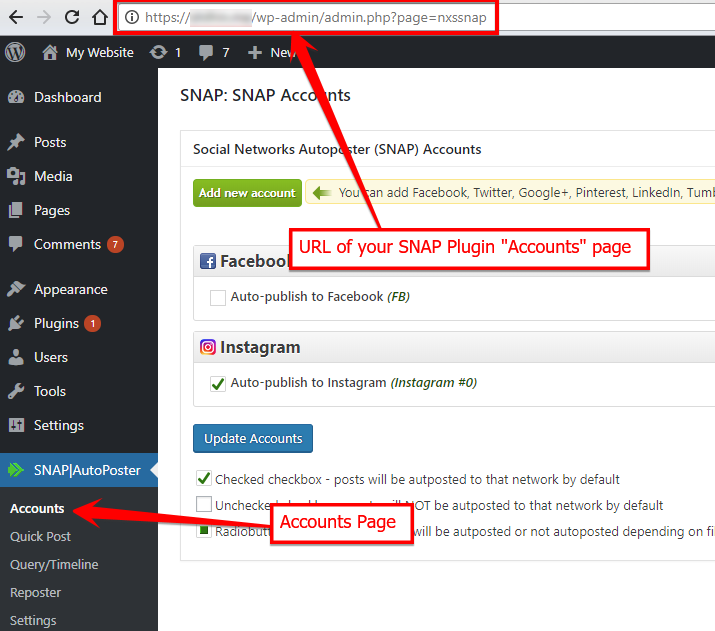
This is the Accounts page inside your own WordPress administration area, not a public page on NextScripts.com.
Facebook troubleshooting
Unable to create a Facebook developer app
What to check
Check the account and access requirements shown by Meta for Developers. Complete any account verification or developer-registration steps requested there.
If you choose Bring Your Own Keys, use an app you can manage and configure for Page publishing. Cloud Connect uses the simpler account-authorization flow described in the Facebook guide.
Related guides
Facebook returned an unknown publishing error
What to check
An unknown error does not identify a single cause. Save the full response and check the selected post type, message, destination, image, and link.
If media is involved, confirm that its URL is public and valid. Check whether the post was created before retrying; if the error persists, include the response and time in your support request.
Related guides
A Facebook post is visible only to me
What to check
Confirm that you are viewing the correct Page post and check the Page’s visibility and any audience or account restrictions.
Earlier app-mode interface
This older screenshot illustrates the app-mode setting. Follow the current controls in Meta for Developers.
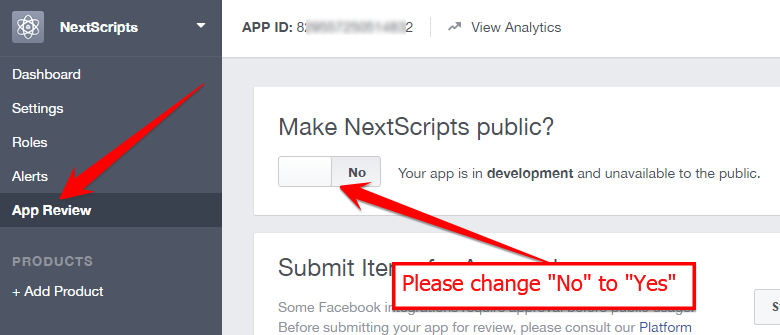
With your own app, check its current mode, access level, and publishing permissions for the intended users. Older “Sandbox” screenshots are a historical reference, not the current dashboard layout.
Related guides
Facebook has no valid app or authorization token
What to check
Open the affected Facebook account in SNAP and complete its connection again. Grant the requested permissions and select the destination Page.
For Bring Your Own Keys, also check that the App ID and secret belong to the intended app. If access was revoked, saving the same old token will not restore it.
Related guides
Facebook has not authorized the publishing action
What to check
Check the selected Page, the authorizing identity’s Page access, and the permissions granted to the app. A domain mismatch is one possible configuration issue, not the only possible cause.
Correct the app settings where needed, reconnect, grant the requested permissions, and choose the intended Page.
Related guides
Facebook appsecret_proof error
What to check
This response concerns app-secret proof requirements for an API request. It is not resolved by changing a Page name or entering an unrelated token.
For your own app, verify the App ID and App Secret, use the current SNAP connector, and review the app’s server-security settings and the exact response. Do not share the app secret in a support message.
Related guides
Facebook OAuth redirect URL does not match
What to check
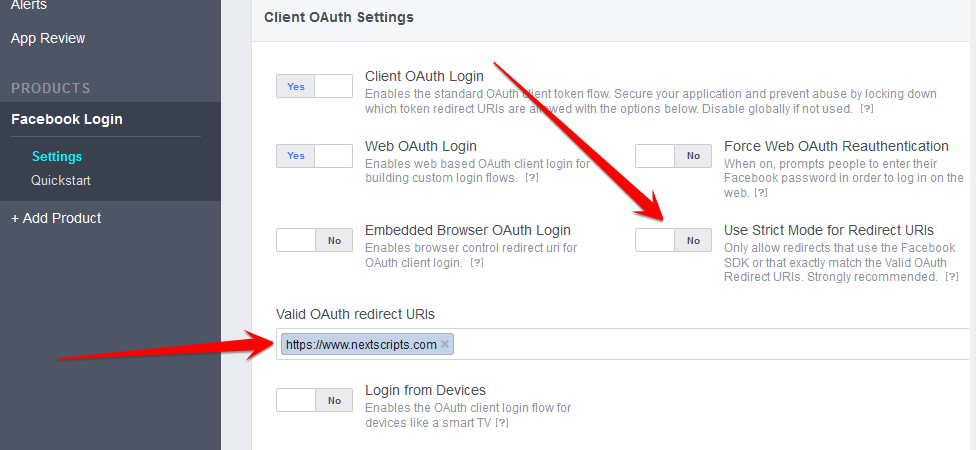
For Bring Your Own Keys, copy the exact OAuth redirect URL shown by SNAP into the Meta app’s redirect configuration. Match HTTPS, hostname, path, and any query string.
App website settings
The original screenshot shows where website details appeared in an earlier dashboard. Use your own site details.
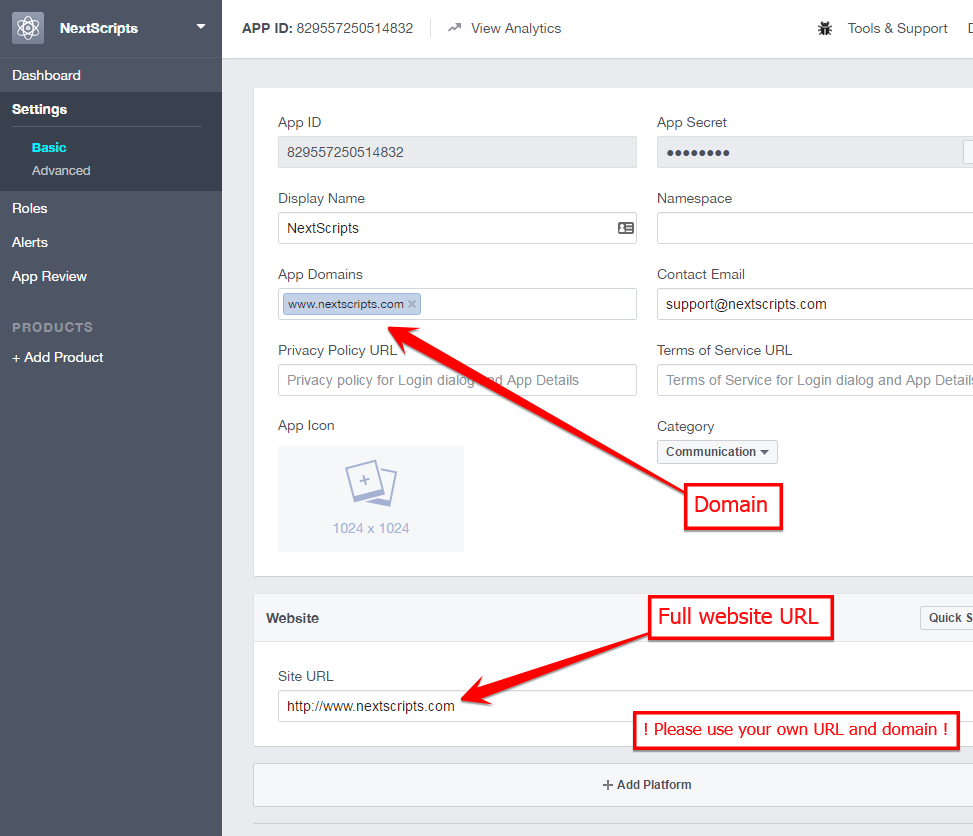
Check the app’s website and domain settings where required. Keep exact redirect matching; disabling strict matching is not the current fix.
OAuth redirect settings
Locate the current redirect settings and enter the exact URL displayed by SNAP. Earlier dashboard labels may differ.
Related guides
Wrong title or description in a shared link
What to check
A shared-link preview may come from the destination’s cached copy of your page metadata. Set the intended Open Graph title, description, and image on the page itself.
Make sure the metadata is available when SNAP publishes the link. Clear relevant site caches and inspect the URL with the network’s preview tool.
Related guides
Expired or invalid access tokens
What to check
Authorization can expire or be revoked after a password change, an access change, or a security action. Do not assume every provider uses the same fixed expiration period.
Open the affected account in SNAP and reconnect or reauthorize it. For Facebook, grant the requested access and choose the intended Page. Save and check the next delivery.
Related guides
Facebook Page posts appear under the wrong identity
What to check
Check the Page selected in the SNAP account and confirm that the connection is a Page connection. Review the resulting post on that Page.
If Page access changed, reconnect and select the intended Page again. The old “Always comment and post as” preference is not a current setup step.
Related guides
Facebook could not create a share
What to check
Check the actual response and the selected post type. Confirm the article link is valid and its metadata can be fetched.
Test a simple message with one intended article URL to isolate formatting or URL problems. Do not treat an old “one link only” explanation as a universal rule for every current Facebook post type.
Related guides
A destination reports duplicate content
What to check
Check whether another plugin, automation, manual repost, or Reposter action already sent the same message to the same destination.
Keep one intended publishing route for each destination and avoid repeatedly resubmitting a message rejected as a duplicate. The old Facebook-to-Twitter linking instructions are no longer the current solution.
Related guides
Facebook rejected a shared URL
What to check
Check that the article URL is valid, public, and reachable over HTTPS. Inspect redirects, page metadata, and the image URL.
Use Meta’s Sharing Debugger to inspect the URL. Check whether the post was created before retrying. An old error number does not establish that a current failure is caused by overloaded Facebook servers.
Related guides
Invalid Facebook permission scopes
What to check
A permission error must be checked against the scopes supported by the current connector and Meta app configuration. The older manage_pages and publish_pages names in this article are legacy names.
Keep SNAP current. For Bring Your Own Keys, follow the current Page setup and app-permission requirements, then reauthorize if required.
Related guides
Facebook Page token or permission errors
What to check
Check that the authorizing identity has the necessary Page access and that the connection includes the Page you want to publish to.
For your own app, check its current Page permissions and access requirements. Reauthorize after correcting access, then choose the Page again.
Related guides
A video link appears as an image preview
What to check
Sharing a blog link with a video on the page is different from uploading a video to the destination. A preview image does not necessarily provide an embedded video player.
Check the selected Facebook post type and whether it sends a link, an image, or a supported video upload. Test the actual destination format rather than assuming every video embedded on your site will play inside a link preview.
Related guides
Text colors, HTML, and formatted links
What to check
Formatting support depends on the destination and post type. A plain-text Facebook Page message does not become rich HTML when HTML is added to the SNAP template.
Use plain text for plain-text destinations. Use HTML only with destinations and post types that support it, such as full-content blog integrations.
Related guides
Which Facebook destinations can I connect?
What to check
Follow the current Facebook setup guide for Page publishing. Authorize an identity with the required access and choose the Page from the list.
Older instructions on this site mentioned personal profiles and groups through retired connection methods. Those instructions do not describe the current Facebook Page connection.
Related guides
Which name appears on Facebook Page posts?
What to check
For the current Facebook Page connection, choose the destination Page during setup. Page posts use that Page’s publishing identity.
The person who authorizes the connection must have the necessary Page access. Check the saved Page selection and the resulting post before enabling automatic delivery.
Related guides
Facebook Graph API upgrade notices
What to check
Read the version, deadline, and affected operations in the notice for your own app. Keep SNAP current and review Meta’s migration information for that version.
With your own app, check required permissions, app access, and the redirect URL. Reauthorize if the change requires new consent. Do not assume that every version change is automatic or that an old plugin supports every future API version.
Related guides
Facebook security or unusual-login notices
What to check
If Facebook reports an unfamiliar login or asks you to secure your account, open Facebook directly and review the activity. Confirm only activity you recognize.
The older username/password and browser-session instructions are no longer the current connection procedure. Connect the account through SNAP’s authorization flow. Reconnect after resolving a security restriction if its authorization was revoked.
Related guides
Instagram troubleshooting
Instagram checkpoint or account-security notices
What to check
Open Instagram directly and review any account-security or login challenge. Confirm only access that belongs to you.
The old server-login workaround is retired. Once the account is available, reconnect using the current Instagram authorization flow if the connection has been revoked.
Related guides
Instagram says the post is unavailable
What to check
Check the destination account directly and confirm whether the post exists. A broken post link can also reflect removed content, visibility restrictions, or a delivery problem.
Review the exact SNAP response and Instagram’s account-status notices. Do not assume that waiting a fixed number of days or publishing unrelated posts will resolve the issue.
Related guides
Instagram post disappeared or has no caption
What to check
A successful API response does not guarantee that a post will remain visible. Open the intended Instagram account and check the post, its caption, and any account-status or moderation notices.
Check SNAP’s exact delivery response and the message template. A missing caption or generic server error alone does not prove that an image or account was marked as spam.
- Confirm the connected account and check whether the post was removed or restricted.
- Try a short plain-text caption and a valid public image to isolate the failing input.
- If Instagram reports a restriction, use its account-status and review process.
Related guides
X / Twitter troubleshooting
X app is read-only and cannot publish
What to check
For Bring Your Own Keys, enable the app access required for publishing. Reauthorize or regenerate the user tokens after changing access where required.
Enter the credentials from the correct app and user account in SNAP, then test once.
Related guides
X rejected a link as unsafe
What to check
Review the URL, redirects, and destination site. Check the site for actual compromised or unwanted content and review any restriction shown by X.
If the site is clean and you believe the restriction is wrong, request review through X. Changing the shortener is not a substitute for resolving an unsafe destination.
Related guides
X says a request looks automated
What to check
Check the exact X response, account restrictions, message content, links, and posting frequency. Automatic publishing does not bypass X’s rules.
Do not repeatedly retry rejected content. Resolve an identified account or content restriction through X’s own review process.
Related guides
X could not authenticate the account
What to check
For Bring Your Own Keys, check that the API key, secret, access token, and access-token secret are in the correct fields and belong to the intended app and account.
Check the app’s publishing access and reconnect or regenerate authorization when required. For Cloud Connect, reconnect through the account’s Connect button.
Related guides
Message templates and X character counts
What to check
The template shown in WordPress is not the final message. SNAP expands titles, excerpts, custom fields, links, and other tags when preparing the post.
Test with real content and check the final message and X’s response. A simple count of the unexpanded template does not measure the final post.
Related guides
Pinterest troubleshooting
Pinterest returned a 502 server error
What to check
A 502 response indicates a server or gateway failure. It does not by itself prove a content-policy violation.
Check whether the Pin was created before retrying. If the error persists, record its time and response, check the image and link URLs, and contact support with those details.
Related guides
Pinterest blocked a link or text
What to check
Review the URL and content mentioned in Pinterest’s response. Check redirects, your destination domain, and whether the content complies with Pinterest’s rules.
Test the full original article URL instead of a shortened link to isolate a redirect or shortener problem. If the domain is restricted, use Pinterest’s review or support process.
Related guides
Transfer closed before the response completed
What to check
This error means the HTTP transfer ended before the expected response was complete. It does not identify a single cause.
Retry once after checking whether a post was already created. If it repeats, give your host the endpoint, time, and full transport error so they can check timeouts, proxies, TLS, and server logs.
Related guides
Pinterest could not fetch the image
What to check
Check the exact image URL supplied for the Pin. It must identify an accessible image, not an attachment page, login screen, or redirect to a protected file.
Confirm that the image loads publicly over HTTPS and meets Pinterest’s media requirements. Check hotlink protection, firewall challenges, and the provider’s response.
Related guides
LinkedIn troubleshooting
LinkedIn link preview has no image
What to check
For a shared-link preview, check the page’s Open Graph image, title, and description. A network can cache earlier metadata.
For a post that uploads an image separately, check the selected image and upload response instead. These are different publishing paths.
Related guides
Reddit troubleshooting
Reddit subreddit selection is empty
What to check
Confirm that the intended Reddit account is authorized, the app has the required access, and the target subreddit name is correct.
A subscription list is not a list of publishing permissions. Community rules determine where you can post; being a moderator is not a universal requirement for every subreddit.
Related guides
Reddit rejected a post
What to check
Check the response for the intended subreddit. Posting can depend on account access, community rules, moderation requirements, permitted post types, and API access.
Confirm the account can submit that content to the subreddit. If moderators or Reddit restrict the submission, resolve that restriction with them; changing the SNAP template does not grant posting rights.
Related guides
Scoop.it troubleshooting
Scoop.it needs a topic, not a profile URL
What to check
A URL such as https://www.scoop.it/u/username identifies a profile. Publishing uses a topic, such as https://www.scoop.it/t/topic-name.
Enter the topic URL name requested by SNAP and use a token allowed to publish to that topic.
Related guides
Tumblr troubleshooting
Duplicate images in a Tumblr post
What to check
Check whether the image is included both as an attached image and inside the message content. A template using %IMG% or full post content can repeat an image already supplied separately.
Choose the intended post type, simplify the template, and test with one image.
Related guides
Historical connection messages
Archived answers and current alternatives
These older messages refer to retired integrations or connection methods. Their answers point to current alternatives.
Older Google login and unlock instructions
About this older message
The old account-unlock, less-secure-app, and browser-session instructions are retired. Do not use them as a current Blogger connection procedure.
For Blogger, use the current OAuth app setup and authorize the account that can publish to your blog.
Related guides
Archived Google+ preview-image issue
About this older message
This article referred to a retired integration. Its network-specific instructions are no longer current.
For supported networks, the image-selection guide explains the difference between image uploads and metadata-based link previews.
Related guides
Older LinkedIn CAPTCHA errors
About this older message
CAPTCHA handling was part of the retired browser-login connection. It is not a step in the current LinkedIn OAuth setup.
Follow the current connection guide. If authorization fails to load, check the redirect URL and the browser or server error rather than copying an old CAPTCHA workaround.
Related guides
Older separate-library installation
About this older message
Manual installation of the old separate API libraries is no longer the current SNAP setup. Install the current plugin and follow the guide for your network.
Related guides
Older Facebook group-posting errors
About this older message
The old numeric-group-URL workaround belonged to a retired group connection. Changing the group URL does not turn it into a supported Page destination.
Related guides
Archived Google+ album-limit message
About this older message
The old “Number of photos in album” message belonged to the retired Google+ integration. Deleting or moving old album images is not a current SNAP setup step.
Related guides
Archived “Lost Login info” message
About this older message
This message referred to the retired Google+ connection. Its old login and session fixes no longer apply.
Choose a currently supported network from the setup directory.
Related guides
Older Instagram app-update errors
About this older message
The old “Please update your Instagram app” message came from an earlier connection method. Updating the phone app is not the current SNAP connection procedure.
For a current publishing error, check the image URL and media requirements, use a plain-text caption, and review the actual API response.
Related guides
Older Pinterest browser or IP-block messages
About this older message
The old “We found a bot” login advice concerned a browser-based connection. The current Pinterest setup uses authorization through Cloud Connect or your own app.
Use the current connection guide. If Pinterest restricts your account or domain, review the notice with Pinterest rather than attempting to bypass it with a proxy.
Related guides
Older LinkedIn login or IP-block messages
About this older message
This notice concerned the retired browser-login method. Proxy logins and browser challenges are not part of the current LinkedIn OAuth setup.
Reconnect with the current LinkedIn guide. If an API request still fails, record the response and distinguish an account restriction from a server connection error.
Related guides
Older Facebook group-publishing instructions
About this older message
The old group-token workaround described here is retired. It is not part of the current SNAP Facebook Page connection.
Use the current Facebook guide for supported destinations. An old app ID, group ID, or copied token does not restore a retired connection method.
Related guides
Use the current network connections
About this older message
The old separate-library purchasing and installation instructions have been retired.
Use the current SNAP plugin and choose the network in Accounts. Major platforms have Cloud Connect and Bring Your Own Keys sections; native integrations use their documented credentials.
Related guides
Legacy “Failed Session” or “Wrong Session” message
About this older message
This article referred to an older browser-session connection. Copying a browser session into SNAP is not part of the current Facebook setup.
Use the current Facebook guide to connect through Cloud Connect or your own developer app.
Related guides
Legacy activation-key error
About this older message
This message belonged to the retired activation system. It is not a setup requirement for the current free SNAP plugin.
Install the current plugin and follow the network’s current connection guide. For an existing historical purchase or account record, use My Account (legacy).
Related guides
Historical connection messages
Historical connection messages
Historical connection messages
Historical connection messages