
Automatic image selection
In the SNAP panel on the New Post or Edit Post screen, find Image(s) to use. Leave Auto enabled to let SNAP choose the image.
SNAP normally uses the featured image, then an image from the post body, then the configured default image. See the full image-selection order for alternative-image settings and fallbacks.
Choose an image manually
Select an image from the post
Turn off Auto to display the images from the current post, then select the image you want to publish.
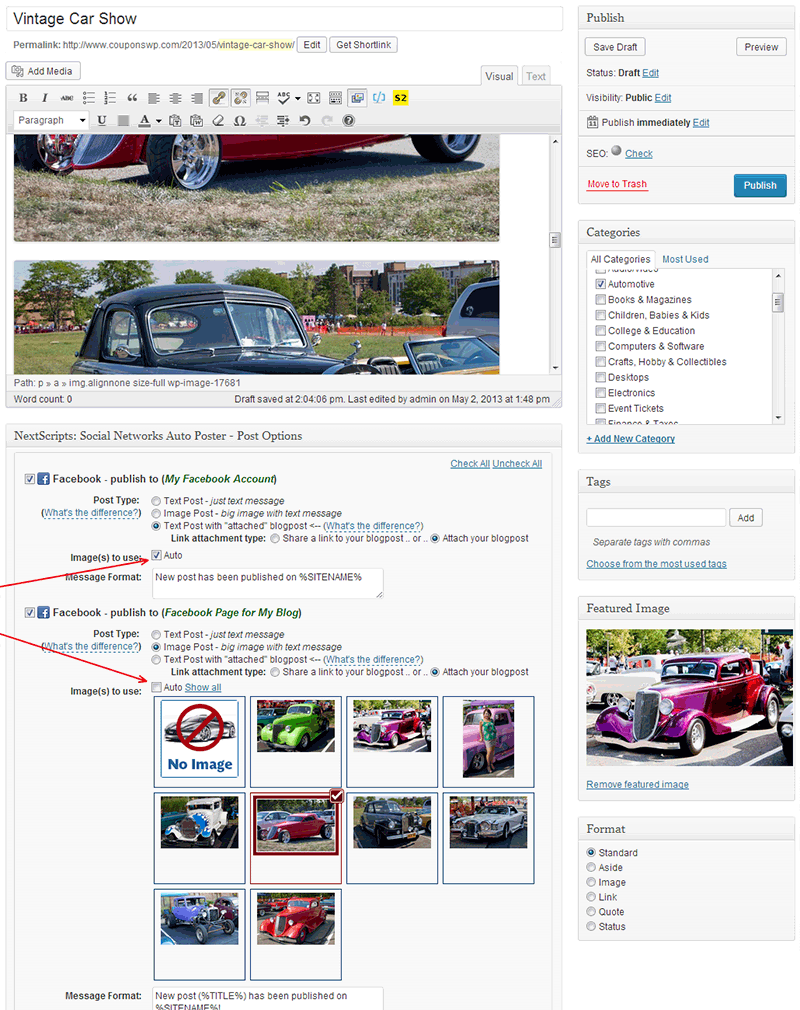
Image posts and link previews
This selector applies when SNAP supplies the image for the selected destination and post type. A shared-link preview may instead use the page’s og:image metadata and the network’s own preview cache.
Check before publishing
Save your selection and check the destination account’s image options. Make sure the selected image is available before publishing and that its URL loads publicly over HTTPS.